> ## Documentation Index
> Fetch the complete documentation index at: https://developer.zamp.com/llms.txt
> Use this file to discover all available pages before exploring further.
# Installation Guide
> Download and install Zamp's extension for Adobe Commerce with these steps.
# Overview
Downloading and installing Zamp's Adobe Commerce extension can either be handle locally, or through the Magento Marketplace.
# Prerequisites
| **Item** | **Where to Obtain** |
| -------------------------------------------------------------------------------------------------------------------------------- | ------------------- |
| Adobe Commerce Version 2.4.x | |
| PHP Version 8.2.18 or higher | |
| Magento Modules:
`"magento/framework": "*",`
`"magento/module-checkout": "100.4.*",` `"magento/module-tax": "100.4.*"` | |
## Installation via Composer
Within your Magento directory, run:
```text theme={null}
app/code/ATF/Zamp
```
1. Download the extension file provided by Zamp.
2. Enable the module by running:
1. ```javascript theme={null}
bin/magento module:enable ATF_Zamp
bin/magento setup:upgrade
bin/magento setup:di:compile
bin/magento setup:static-content:deploy -f
bin/magento cache:clean
```
# Verifying the Installation
```text theme={null}
bin/magento module:status ATF_Zamp
```
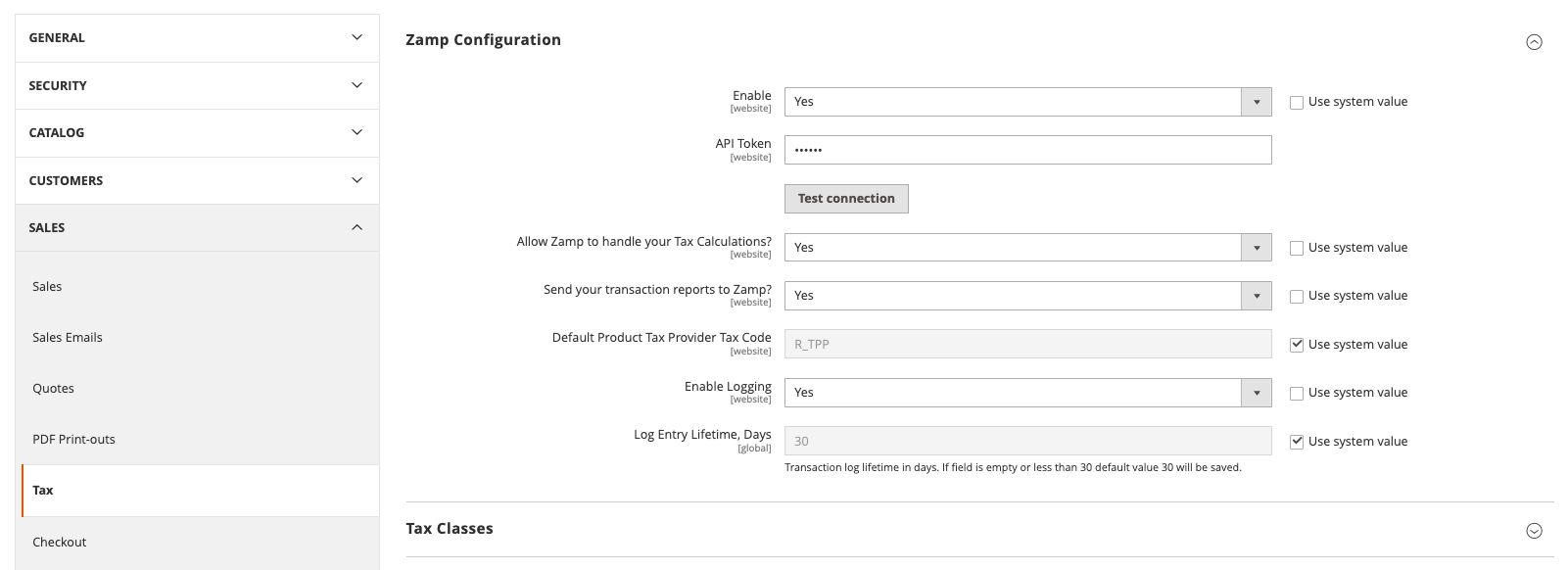
1. Navigate to **Stores > Configuration > Sales > Tax**
2. Look for the **Zamp Configuration** section
1.
 ```text theme={null}
zamp_transaction_log
queue_zamp_historical_transaction_sync
```
```text theme={null}
tail -f var/log/system.log
tail -f var/log/exception.log
```
## Magento Marketplace Configuration
# Configuration
Configure the Zamp Tax extension through the Adobe Commerce admin panel under **Stores > Configuration > Sales > Tax > Zamp Configuration**.
```text theme={null}
zamp_transaction_log
queue_zamp_historical_transaction_sync
```
```text theme={null}
tail -f var/log/system.log
tail -f var/log/exception.log
```
## Magento Marketplace Configuration
# Configuration
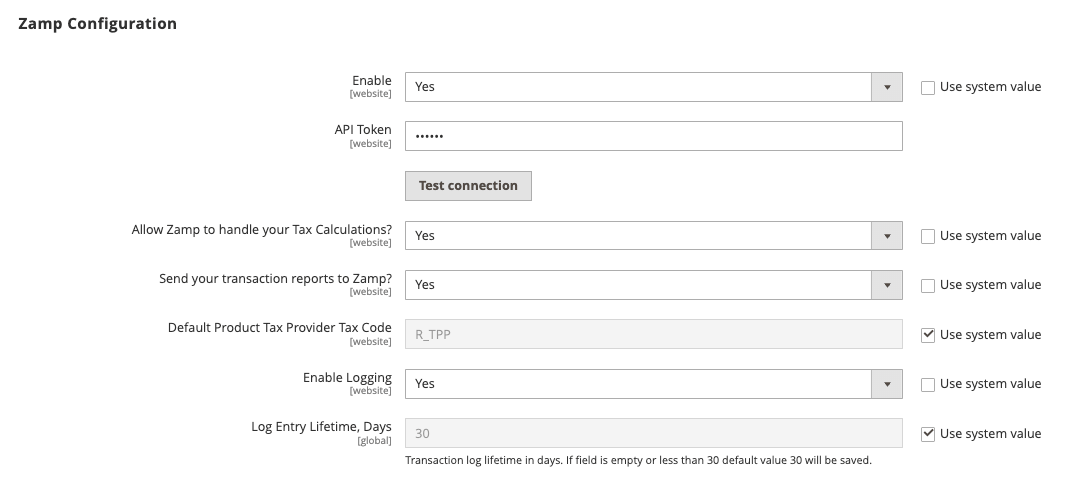
Configure the Zamp Tax extension through the Adobe Commerce admin panel under **Stores > Configuration > Sales > Tax > Zamp Configuration**.
 ### **Module Activation**
* Enable/disable the module using the "Enable" setting
* Configuration path: `tax/zamp_configuration/active`
### **API Credentials**
1. Enter your Zamp API token in the "API Token" field
2. Click "Test Connection" to verify your credentials
3. The API token is stored encrypted in the database
### **Default Tax Settings**
* Configure the default product tax code in "Default Product Tax Provider Tax Code"
* Default value: `R_TPP`
* This code is used when no specific tax code is set on a product
### **Logging Configuration**
* Enable/disable logging with "Enable Logging" setting
* Set log retention period in "Log Entry Lifetime, Days"
* Minimum value: 30 days
* If empty or less than 30, defaults to 30 days
## **Tax Calculation Settings**
### **Enable Tax Calculations**
* Enable Zamp tax calculations using **Allow Zamp to handle your Tax Calculations?**
* Configuration path: `tax/zamp_configuration/allow_tax_calculation`
### **Product Tax Codes**
* Set product-specific tax codes in each product's configuration
* Default code will be used if no product-specific code is set
## **Transaction Settings**
### **Transaction Sync Configuration**
* Enable transaction reporting using **Send your transaction reports to Zamp?**
* Configuration path: `tax/zamp_configuration/send_transactions`
### **Automatic Transaction Reporting**
When enabled, the following events trigger automatic transaction reporting:
* Invoice creation (`sales_order_invoice_save_after` )
* Credit memo creation (`sales_order_creditmemo_save_after` )
* Transaction data includes:
* Line items with tax codes
* Customer tax exemption information
* Shipping and handling charges
* Discounts and adjustments
**Note:** All configuration settings require the module to be enabled (`tax/zamp_configuration/active`) to take effect.
### **Module Activation**
* Enable/disable the module using the "Enable" setting
* Configuration path: `tax/zamp_configuration/active`
### **API Credentials**
1. Enter your Zamp API token in the "API Token" field
2. Click "Test Connection" to verify your credentials
3. The API token is stored encrypted in the database
### **Default Tax Settings**
* Configure the default product tax code in "Default Product Tax Provider Tax Code"
* Default value: `R_TPP`
* This code is used when no specific tax code is set on a product
### **Logging Configuration**
* Enable/disable logging with "Enable Logging" setting
* Set log retention period in "Log Entry Lifetime, Days"
* Minimum value: 30 days
* If empty or less than 30, defaults to 30 days
## **Tax Calculation Settings**
### **Enable Tax Calculations**
* Enable Zamp tax calculations using **Allow Zamp to handle your Tax Calculations?**
* Configuration path: `tax/zamp_configuration/allow_tax_calculation`
### **Product Tax Codes**
* Set product-specific tax codes in each product's configuration
* Default code will be used if no product-specific code is set
## **Transaction Settings**
### **Transaction Sync Configuration**
* Enable transaction reporting using **Send your transaction reports to Zamp?**
* Configuration path: `tax/zamp_configuration/send_transactions`
### **Automatic Transaction Reporting**
When enabled, the following events trigger automatic transaction reporting:
* Invoice creation (`sales_order_invoice_save_after` )
* Credit memo creation (`sales_order_creditmemo_save_after` )
* Transaction data includes:
* Line items with tax codes
* Customer tax exemption information
* Shipping and handling charges
* Discounts and adjustments
**Note:** All configuration settings require the module to be enabled (`tax/zamp_configuration/active`) to take effect.